
Guides/Listening
Choose a voice and speed
Change the narrator and the speed at any time, in any book.
Works oniPhoneAndroidChrome
On the phone
In a book, the player sits at the bottom of the screen.
- Tap the voice icon at the left of the player. The Settings sheet opens.
- Under Narrator, tap a voice. Readio has 40+ voices, the same on the phone and in Chrome. Languages Readio reads lists them by language.
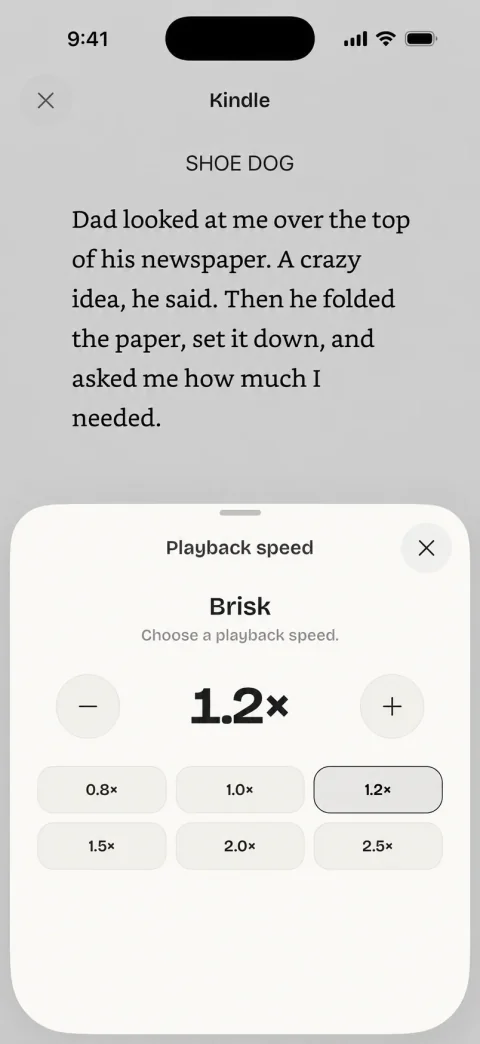
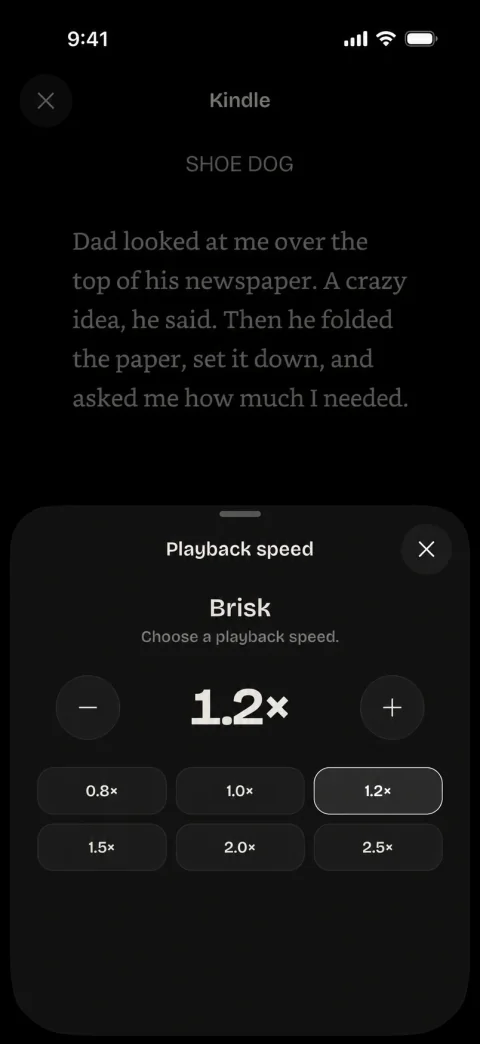
- To change the speed, tap the speed chip at the right of the player (for example 1×). The Playback speed sheet opens. Use − and + to change it by 0.1×, or tap 0.8×, 1.0×, 1.2×, 1.5×, 2.0× or 2.5×. The speed goes from 0.5× to 3×.
A new speed is heard at once. A new voice takes a moment: Readio makes the sound again from the page on screen, and the player says Preparing… while it does.
The Settings sheet also has:
- Book language: Auto uses the language the book states, and shows it (for example Auto · English). Choose English, Spanish, French, German, Italian or Portuguese if Readio reads a book in the wrong language. See Listen in other languages.
- Sentence pause: the short silence between sentences, from 0 to 1,000 ms in steps of 50. Reset sets it back to 250 ms.
- Sleep timer: see Use the sleep timer.
Some voices read English only. If you pick a Book language your voice cannot read, Readio switches to a voice that can.
In Chrome
- Voice: click the face in the player. Type in Search voices, or pick a language in place of All languages. Each face has a button to hear its sample before you choose.
- Speed: open Speed in the player and drag or scroll the ruler, from 0.5× to 3× in steps of 0.05×. Or click 1×, 1.25×, 1.5× or 2×. Scrolling over the Speed button changes the speed without opening it.
The 40+ voices are grouped by language: American, British and Australian English, German, French, Spanish, Italian and Portuguese (Brazil). A book in another language than English shows only the voices that can read it: its own voices first, then the English multilingual voices under Any language.
If the voice you picked cannot read the language of the book you open, the first voice that can reads it. Readio keeps your pick for the next book it fits.
Without a plan in Chrome
A Readio account without a plan listens with System, your computer’s voice, listed under Free. The other voices carry a Pro mark. The speed works the same way.
If your computer has no voice for the book’s language, the player says “This computer has no voice for the book’s language. Readio Pro reads it.” See Plans and billing or the pricing page.
What Readio remembers
- Voice, speed and sentence pause: one choice for all your books. It is kept when you close the app or the browser.
- Book language on the phone: kept for each book.
- Your first voice and speed on the phone are the ones you chose during set-up.
The phone and Chrome each keep their own choice. Changing the voice on one does not change it on the other.
Questions
The voice list follows the book’s language. A book in English shows the English voices. A book in another language shows that language’s own voices and the multilingual English voices, which read it in its language.
From 0.5× to 3×. The phone changes the speed in steps of 0.1×, and Chrome in steps of 0.05×.
It keeps one voice and one speed for all your books, also after you close the app or the browser. Only Book language on the phone is kept for each book.
No. Every voice is synthetic: Readio makes the sound from the text of your book as it reads. Listening in the apps needs Readio Pro.
Not the natural voices. In Chrome, a free Readio account listens with System, your computer’s own voice. The phone apps need Readio Pro to listen.